
The whole room
Stand near a doorway and include the ceiling line, a window, and the baseboards. Tap those fixed details as landmarks. Keep that doorway in the same part of the after shot.
For painters
The patchwork disappears. The trim looks sharp. The room feels different. Take the photos from the same angle so your customers can see the painting, instead of guessing what changed.
Before-and-after photo app for painters. iPhone only, in private beta.
A shot list you can repeat
Before the drop cloths, ladders, and prep work fill the room, take a few shots you can repeat. Pick a view that shows the work and leaves something unchanged to guide you back.
Stand near a doorway and include the ceiling line, a window, and the baseboards. Tap those fixed details as landmarks. Keep that doorway in the same part of the after shot.
Take a closer shot of a door frame, window trim, or built-in. Choose a straight edge that will stay put. Keep your distance and the phone height similar when you come back.
Photograph the cabinet run before prep. Include a counter edge or surrounding doorway as a reference. Take the after with the doors in the same positions so the finish gets the attention.
Use a fixed sidewalk or driveway position, and include a roof line or window. Try to return at a similar time of day; deep shadows can hide a color change.
Guided capture
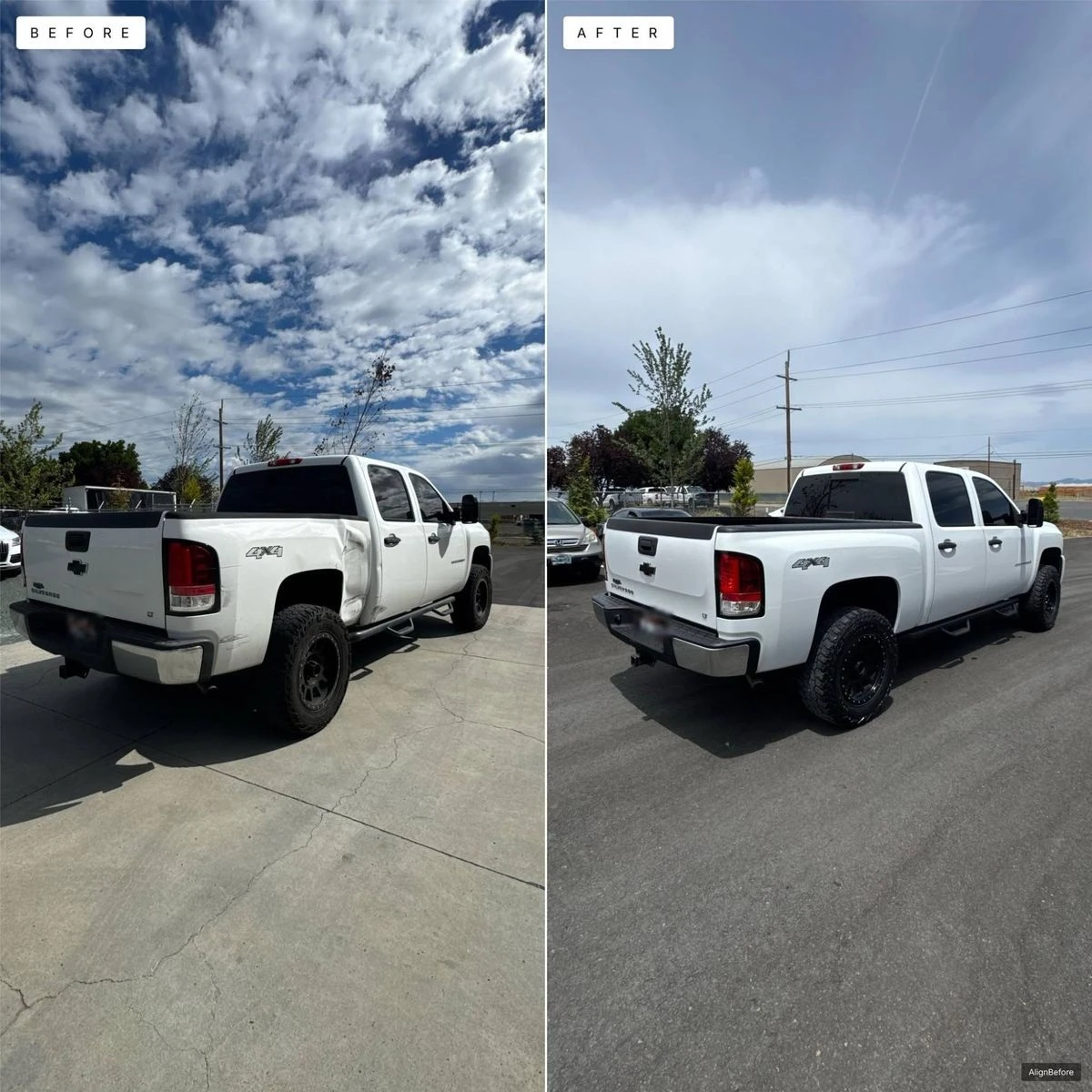
A painted wall can look very different after the job. Pick landmarks along window frames, doorways, and ceiling lines instead of marks on the wall that you plan to cover. AlignBefore can show the before as lines with those landmarks highlighted, or as a see-through photo. You move the phone and take the after when the framing looks right.
Job journal
Use the job journal to note the surfaces, prep, colors, and finish you used. Add an entry when a room is complete. When a customer asks about the work later, the details live beside the shots instead of in a separate text thread.
Ready to share
Use side by side to compare the whole room, or the split reveal to make the color change easy to see. Choose Square for a feed post, Tall for more vertical space, Story for a story, or Wide for a landscape picture. Save the finished picture and post it through the service you use. Pro can add your own logo, or remove the AlignBefore mark.
AlignBefore helps you match framing. It does not promise color calibration or relighting. Similar lighting and camera distance make a fairer comparison; check your photos before sharing them.
No. Lines, the photo guide, and tapped landmarks are available to everyone. Free includes up to three active jobs. Pro adds unlimited jobs, your logo or no mark, and every layout.
Yes. Taking photos, using the guides, keeping notes, and saving finished pictures work on the phone. Posting them online requires a connection.
Join the beta and tell us how it works in the field. Free starts with three active jobs at App Store launch.