
Kitchen transformations
Take a wide shot from an opening that will remain. Include a window or ceiling corner if you can. Record the cabinet runs separately so you have detail shots even if the room layout changes.
For remodelers
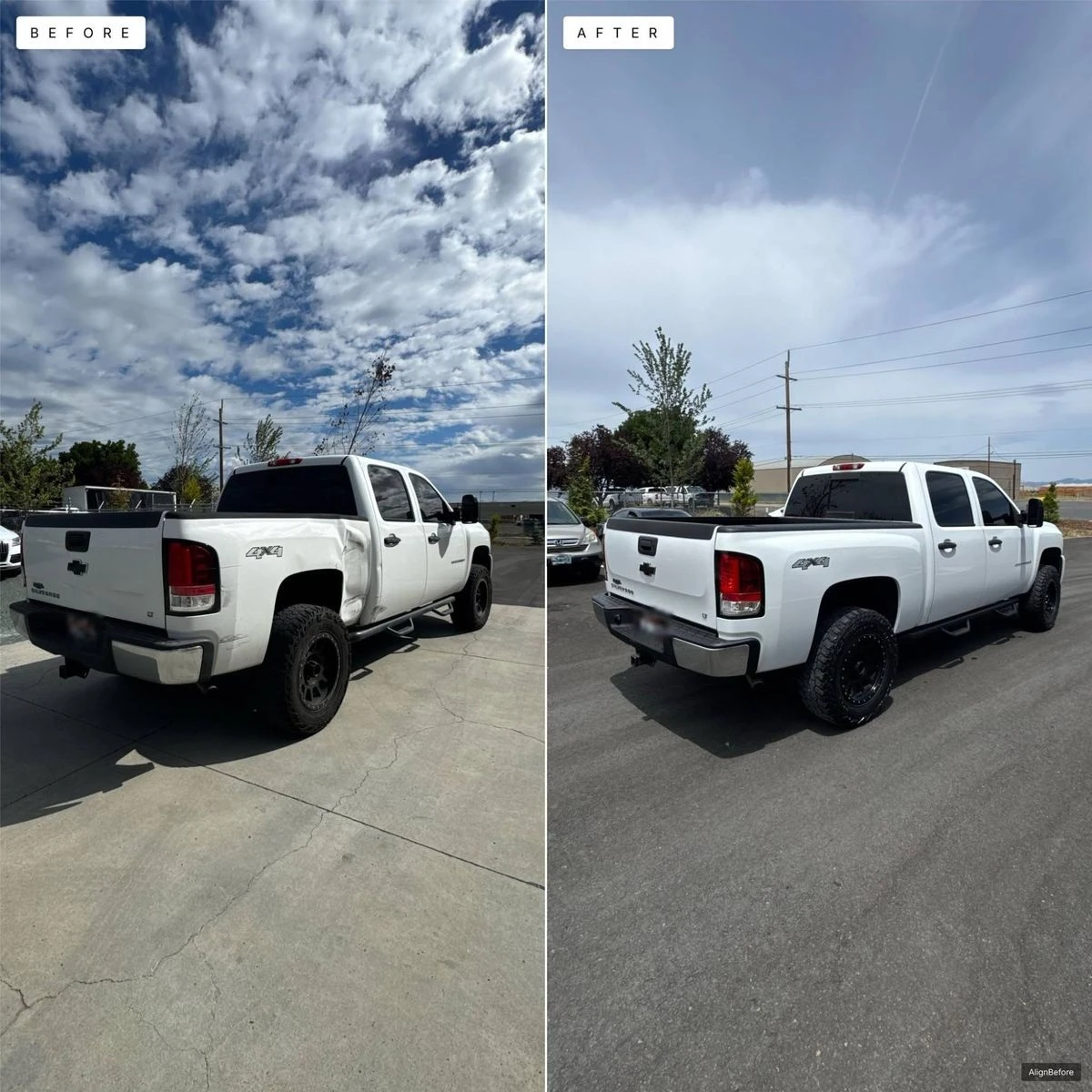
A remodel changes a lot. Your camera angle does not have to. Keep the old room, the progress, and the finished work together, then show customers what you changed.
Before-and-after photo app for remodelers. iPhone only, in private beta.
A shot list you can repeat
A cabinet, wall, or fixture might be gone by the next visit. Choose a view with stable reference points outside the demolition. Take both a wide view of the space and closer views of the work.
Take a wide shot from an opening that will remain. Include a window or ceiling corner if you can. Record the cabinet runs separately so you have detail shots even if the room layout changes.
Work from the doorway when space is tight. Keep the phone height consistent. If a mirror reflects you or the old room, consider another angle you can repeat without hiding the finished fixtures.
Add shots for prep, demolition, rough-in, and the finish. Name the shot for what it shows. A dated journal entry can explain the stage, what changed, and what still needs doing.
Photograph useful details before they are covered. Keep these in the job alongside the finished pictures. They help you explain the scope; a polished before and after cannot show everything underneath.
Guided capture
Tap a window, doorway, or ceiling detail that will survive the work. On the next visit, use Lines or Photo to bring the view back into place. If the whole scene changes, the guide may be less useful. Use a stable reference and your own judgment; the app does not automatically move the camera or guarantee a match.
Job journal
A finished room does not explain the work that got it there. Add dated journal notes for decisions, materials, and completed stages. Job details and notes stay with the photos, and the name and address can be updated when you need to.
Ready to share
Share a finished before and after with a customer, or use Share the whole job to choose the photos, finished pictures, and details you want to send. Photos and pictures travel in one zip with clear file names. Details alone can travel as a text file. You choose where to send it. There is no hosted customer link or cloud dashboard yet.
It can help when stable references remain. A major remodel can remove most of the useful matching points. Keep a view of an unchanged doorway or window and line up the camera manually; no automatic matching is promised.
Yes. Share the whole job packages the items you choose into a file you can send through your preferred app. This is a file handoff, not shared cloud access. It is available to try during the beta; paid access may change at launch.
No. Photos and jobs stay on the iPhone where they were created. Save pictures to Photos or share the whole job to keep a copy elsewhere. Accounts and cloud sync are not available yet.
Join the beta and tell us how it works in the field. Free starts with three active jobs at App Store launch.